Managing Files
Step 1: In the main menu, click on the "File Manager" option to access the system's file manager.
Step 2: In the left sidebar, under the "Your files" section, click on the desired file to view its content or the corresponding molecular geometry in the main panel.
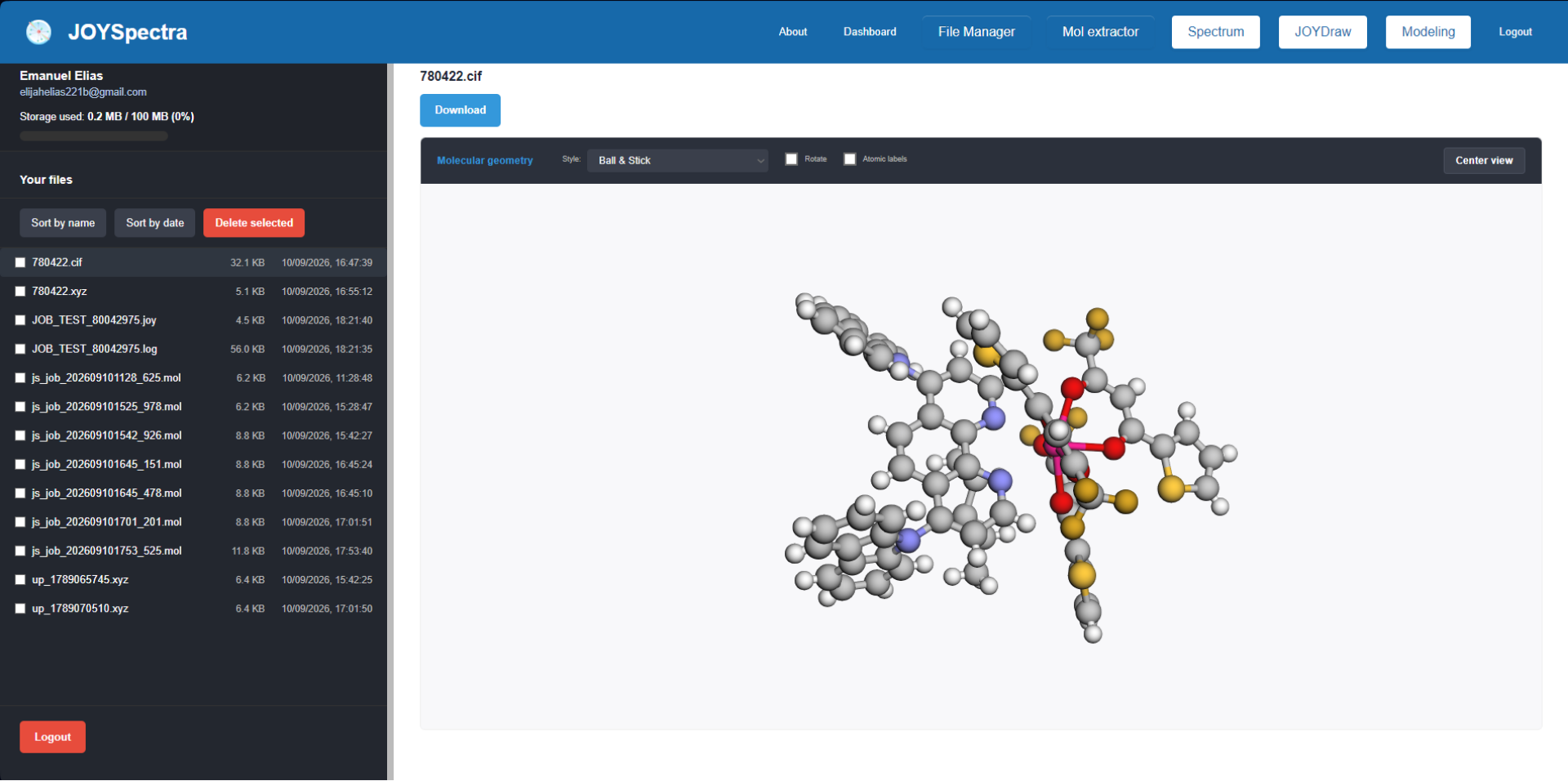
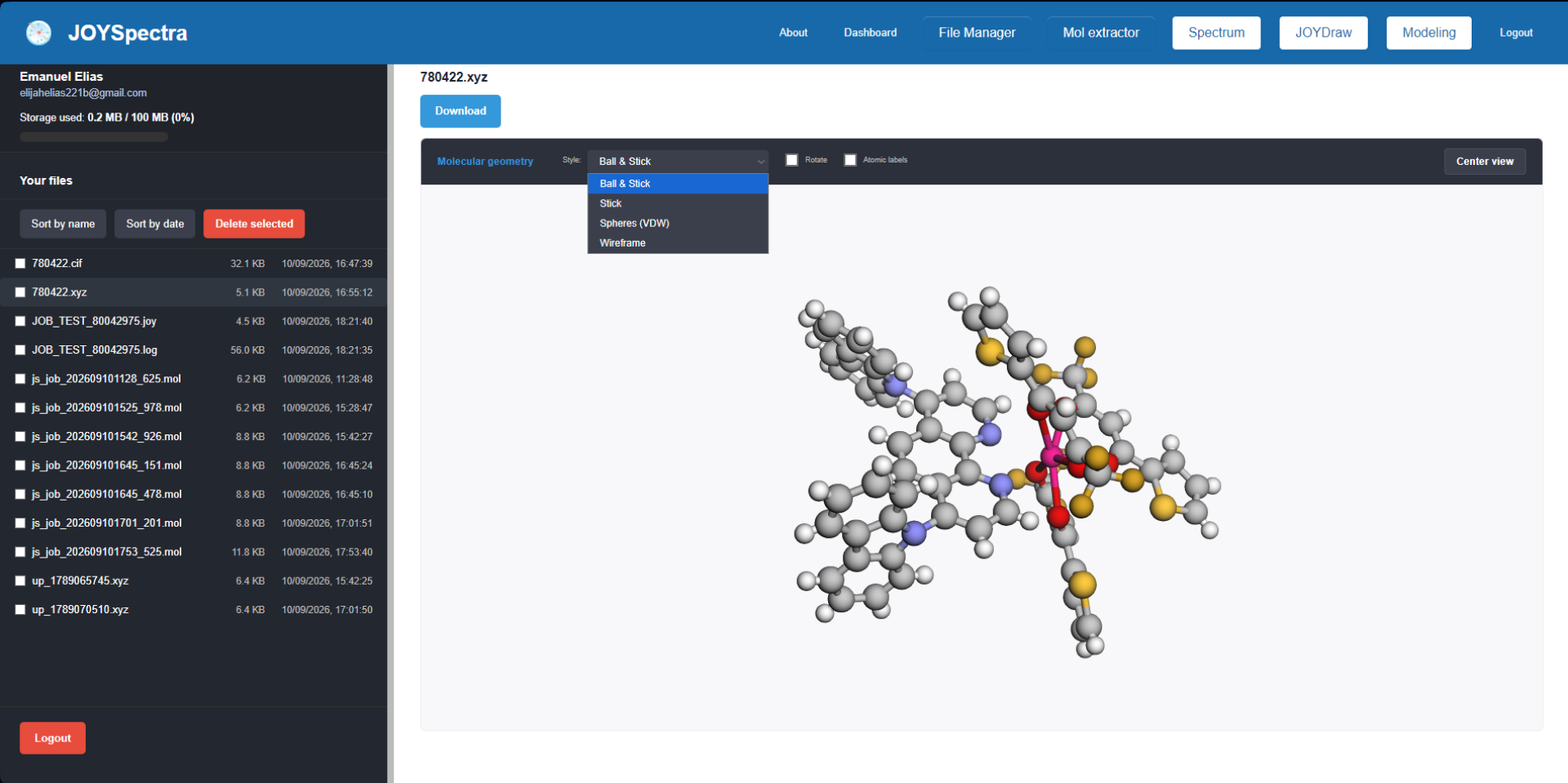
Step 3: In the "Style" section, you can click to choose how to visualize the file's structure. The available options are "Ball And Stick", "Stick", "Spheres (VDW)", and "Wireframe".
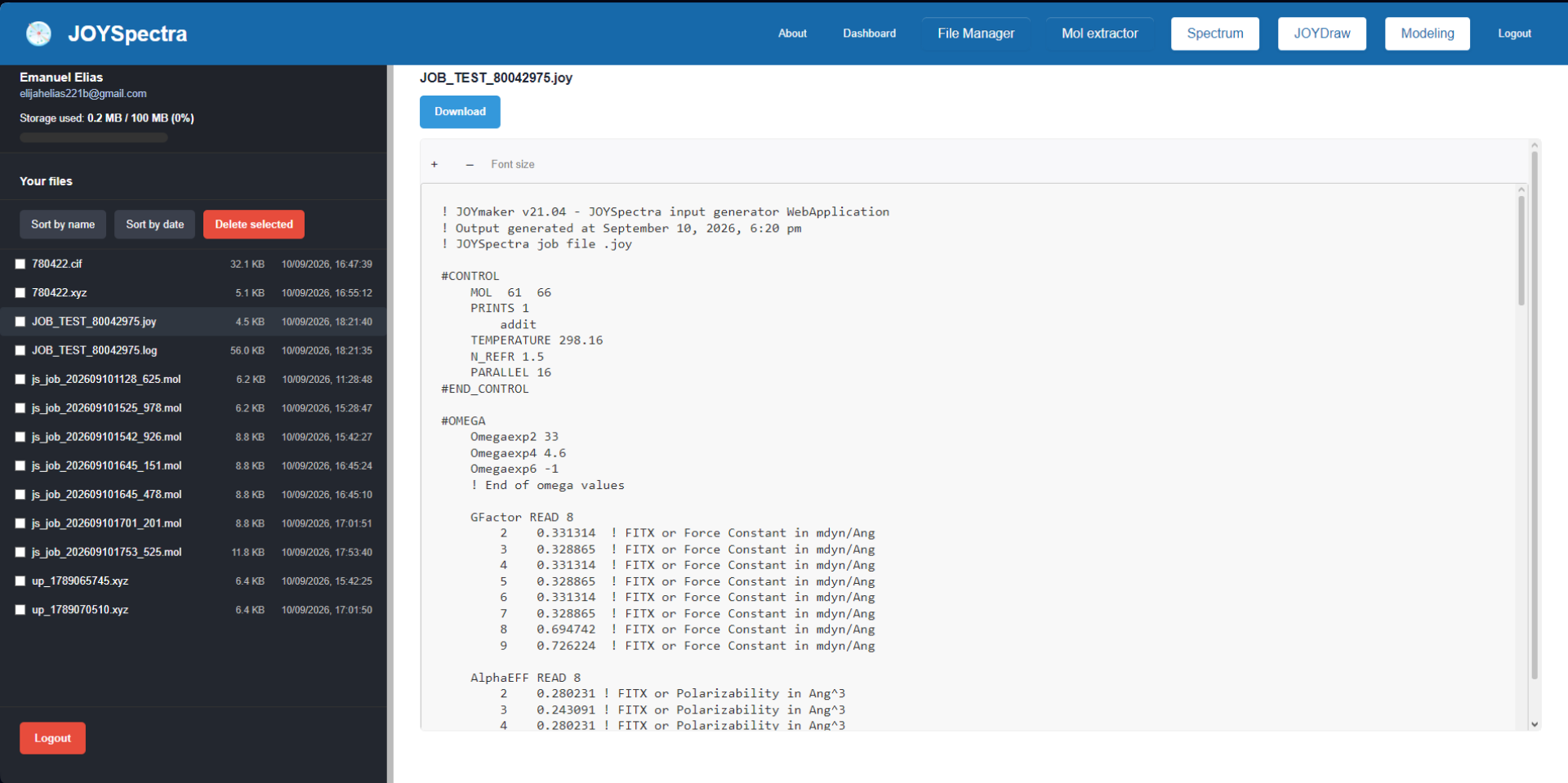
Step 4: In the "Your files" section, locate and select the file with the .joy extension corresponding to the submitted calculations to view the job configurations and parameters.
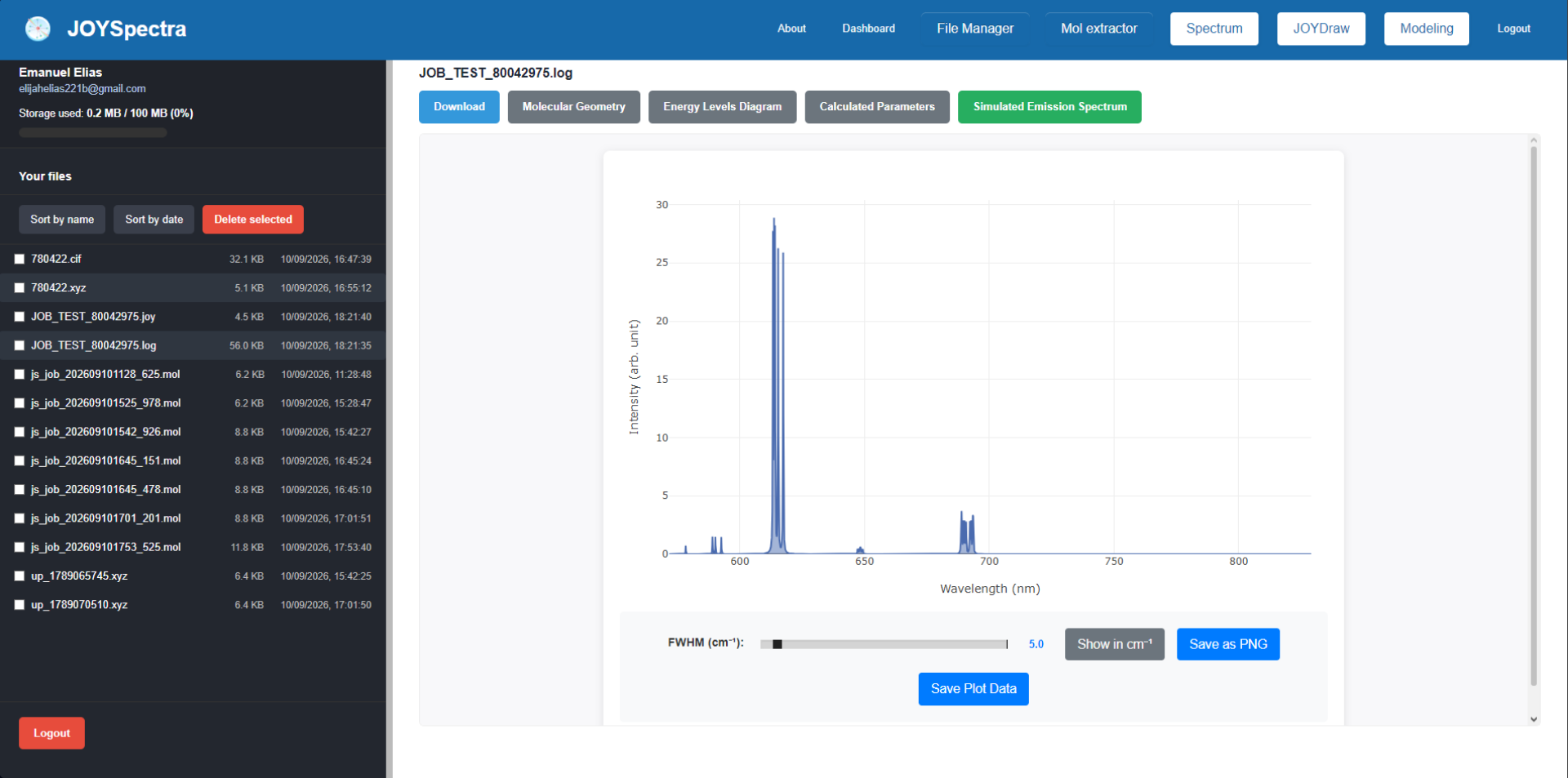
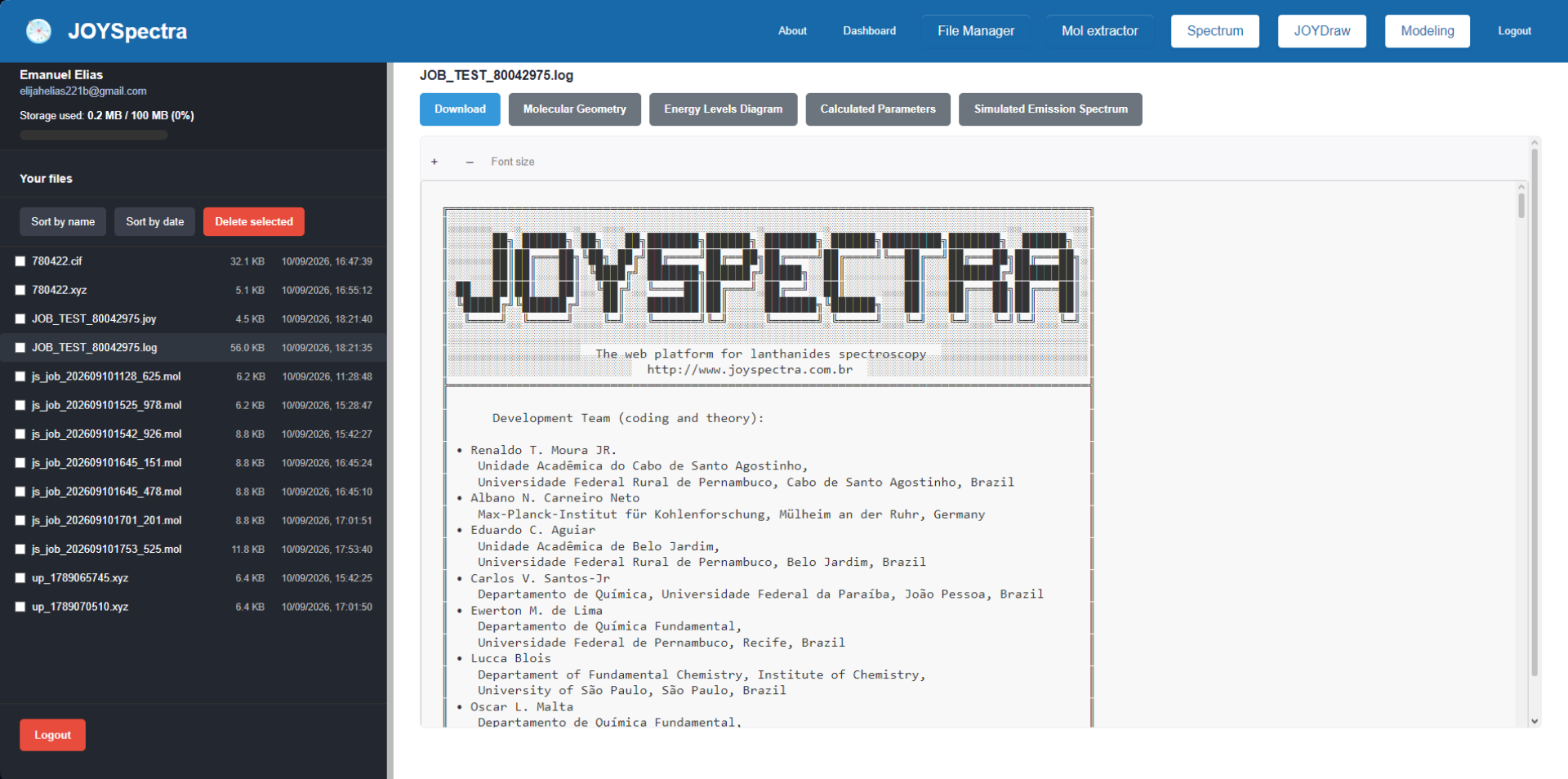
Step 5: Upon opening a .log file, select one of the available options (Download, Molecular Geometry, Energy Levels Diagram, Calculated Parameters, or Simulated Emission Spectrum) to analyze the generated data.
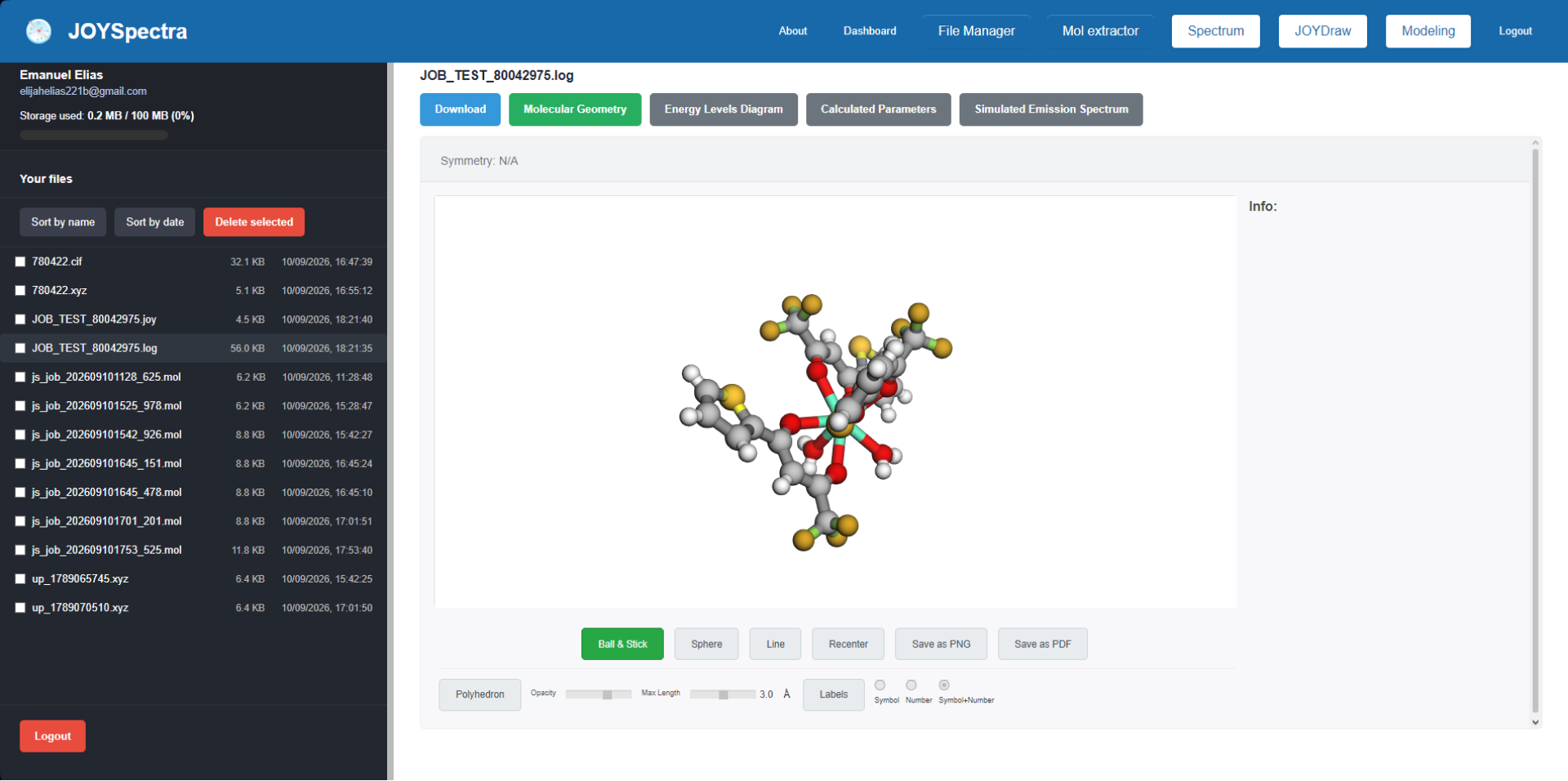
Step 6: Molecular Geometry: Displays the three-dimensional molecular structure.
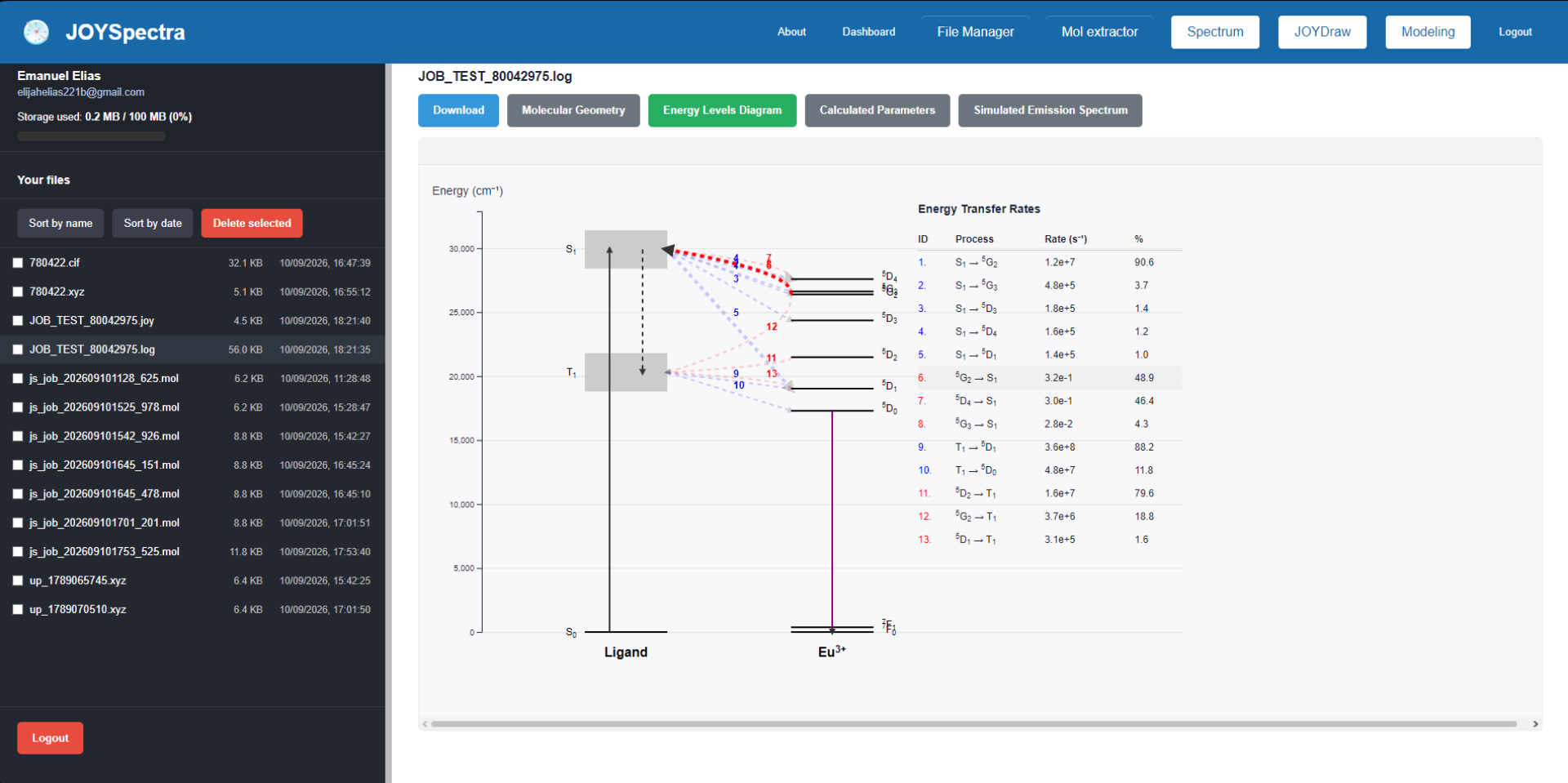
Step 7: Energy Levels Diagram: Presents the energy level diagram.
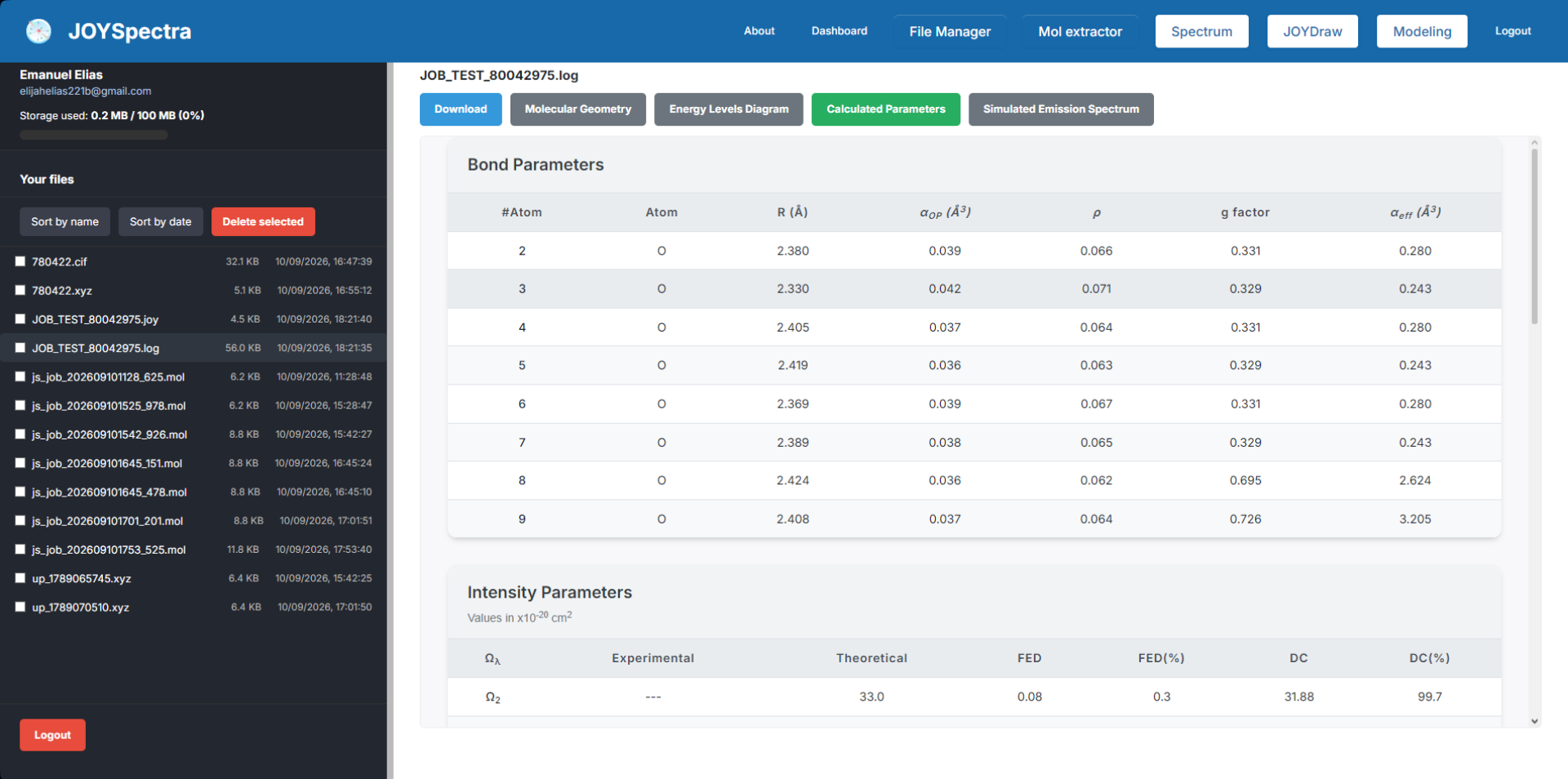
Step 8: Calculated Parameters: Displays the parameters calculated in the simulation.
Step 9: Simulated Emission Spectrum: Shows the simulated emission spectrum.